
adb-ui Service Version Update
Remote Development Environment
There is a script to update the adb-ui service version in the specified remote development environment.
Prerequisites
Before running the script, ensure the following requirements are met:
- Installed Tools: Terraform,
jq, andsedmust be installed on the server. - Permissions: The user must have the necessary permissions to access the
/opt/$ENVdirectory. - Terraform Setup: Terraform configuration and modules must be correctly set up.
Note: Permissions and Terraform prerequisites are covered in the steps outlined in the Remote Environment Setup Documentation.
Running the Script
1. Connect to the Server
SSH into an OVH Virtual Private Server (VPS):
ssh user@your-vps-address
2. Locate the Script
On the server the script is located at:
/opt/devops/$ENV/adb-charts/scripts/upgrade_ui.sh
You can either run it from this location or copy it to your home directory for convenience.
3. Execute the Script
Run the script with two arguments: the environment and the service image tag.
Example:
./upgrade_ui.sh athena 0.61.0-SNAPSHOT-DEV-10628
Note: The service image tag can be retrieved from the service build pipeline output.
4. Implementation
The script retrieves the currently deployed service tags, replaces the adb-ui tag with the new one, and ensures the cluster state aligns with the desired configuration using Terraform.
Error Handling
The script includes basic error handling to prevent misconfigurations:
- If the script fails to change the working directory, it exits immediately.
- If Terraform encounters an issue, the deployment will fail and require manual troubleshooting.
Expected Output
Upon successful execution, you should see:
- A confirmation message displaying the environment and version tag.
- Terraform execution logs showing the applied changes.
Deploying a New Version of adb-ui in the Integration Environment
The adb-ui Bitbucket pipeline includes a step to update the adb-ui service version in the integration environment.
Executing the Deployment
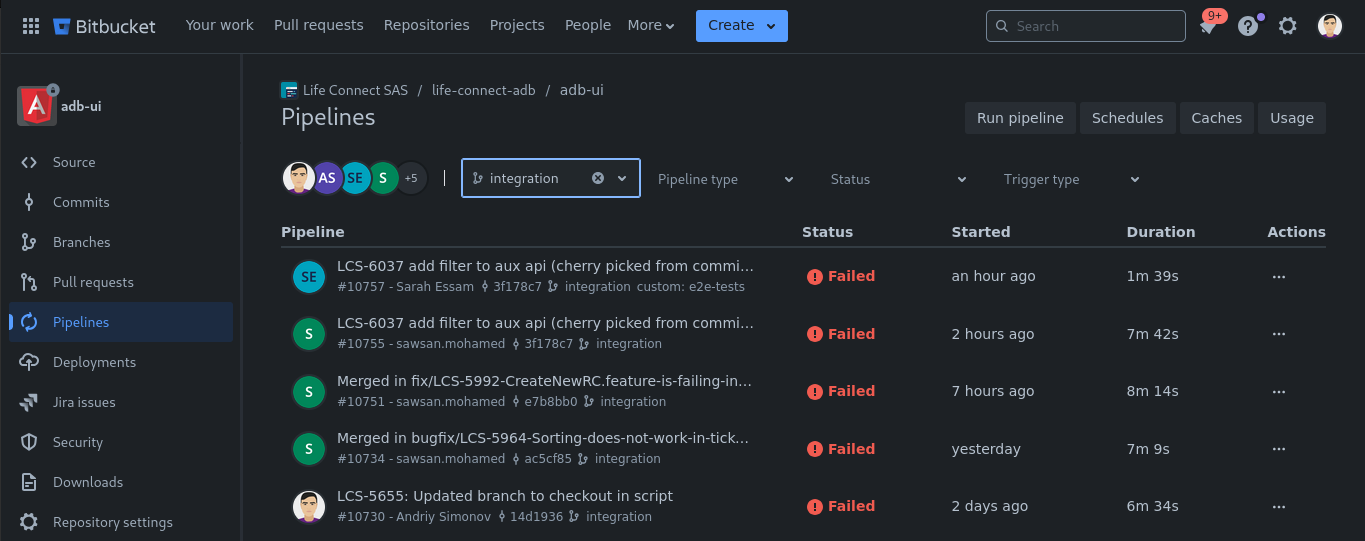
1. Navigate to the Integration Branch Build
- Click Pipelines in the left panel.
- Filter the builds by branch, then select and open the relevant build.
- If the build was initiated manually from the Pipelines page, you are already on the correct page.
2. Run the "Deploy to Integration" Step
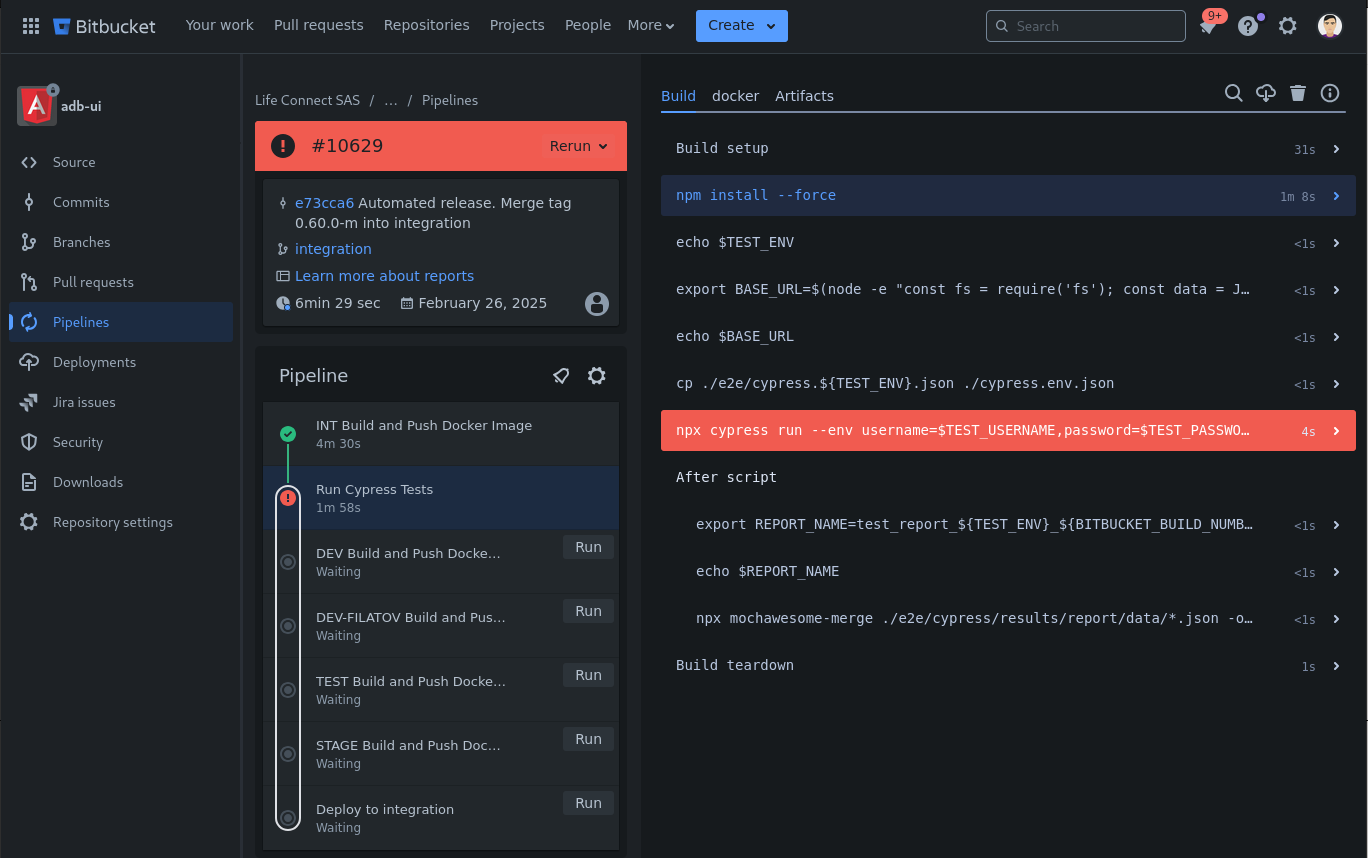
- Wait for the INT Build and Push Docker Image step to complete.
- Once completed, the Deploy to Integration step becomes enabled.
- Click the Run button next to the step name.
3. Pipeline Step Implementation
The Bitbucket pipeline for adb-ui resides in its repository in the integration branch. The deployment step is defined in the bitbucket-pipelines.yml file and follows these steps:
- Collects build metadata (e.g., tag name).
- Calls the
deploy_int.shscript from thepipeline_scriptsdirectory. - The script installs required dependencies and executes the same logic as
upgrade_ui.sh.
If any issues arise, check the build logs for troubleshooting.